




Launch the app
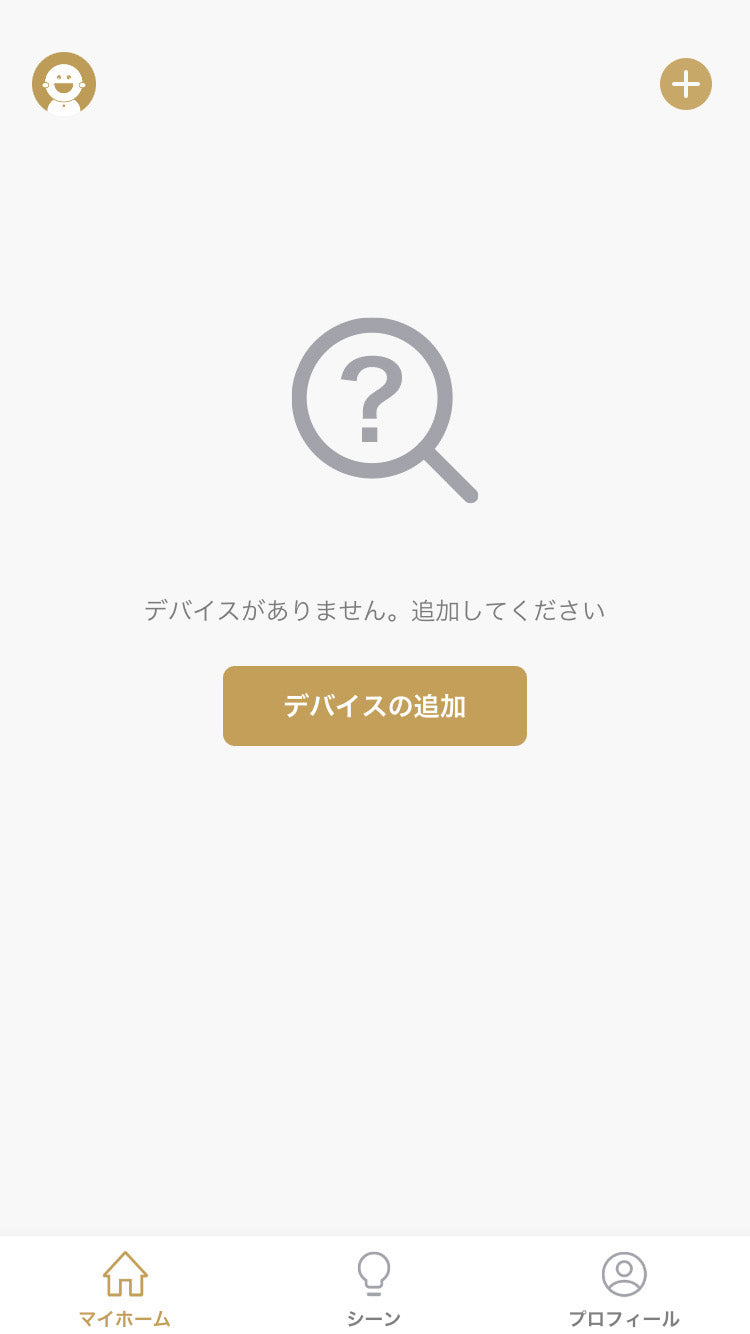
Tap the "EPEIOS Life" application installed on your smartphone or tablet to launch it.
Tap "Add a Device" in My Home.
please note
The app and product cannot be connected in a Wi-Fi environment using the 5GHz frequency band.
Please try connecting to a Wi-Fi band other than the 5GHz band in the Wi-Fi settings of your smartphone or tablet.
Connecting to Chef
It will automatically start connecting with Chef.
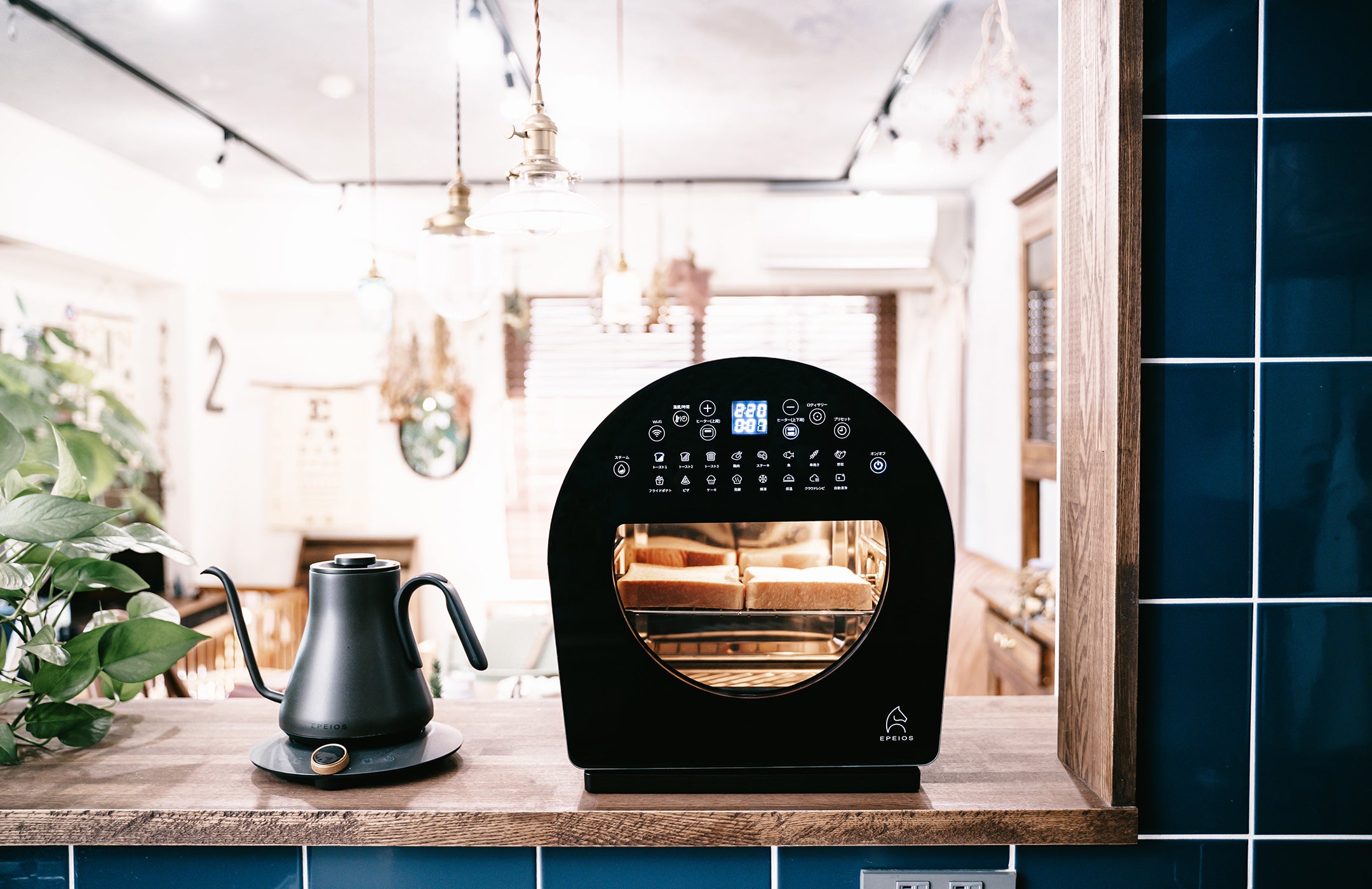
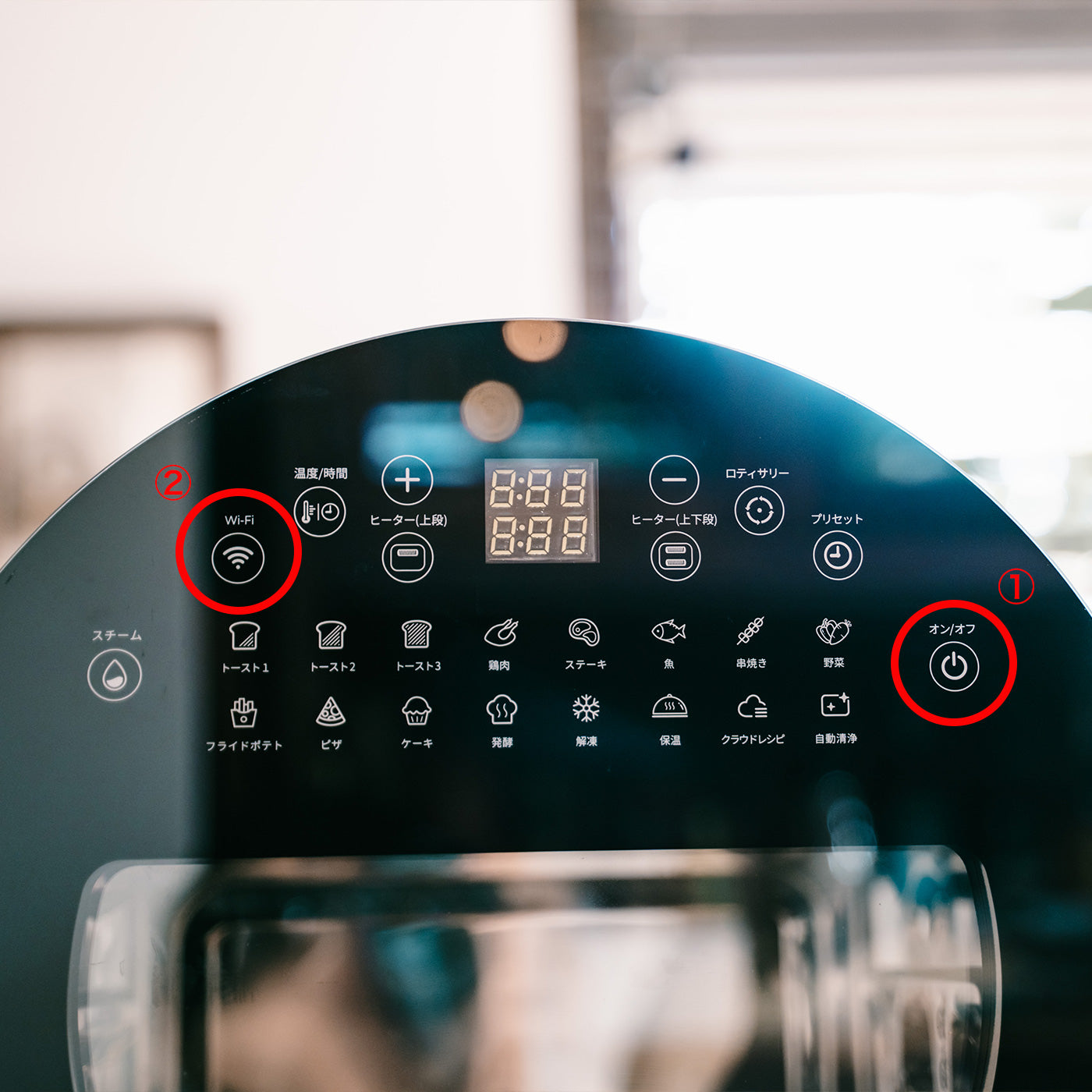
Power on the Chef Smart Non-Fry Oven and put it into pairing mode (see below).
Operating the device
Connect the Chef to a power source.
①Press the power button (on/off) to turn on the power.
② Press and hold the Wi-Fi mark at the top of the second row from the left until you hear a sound to enter pairing mode.
*When in pairing mode, the Wi-Fi mark will flash.
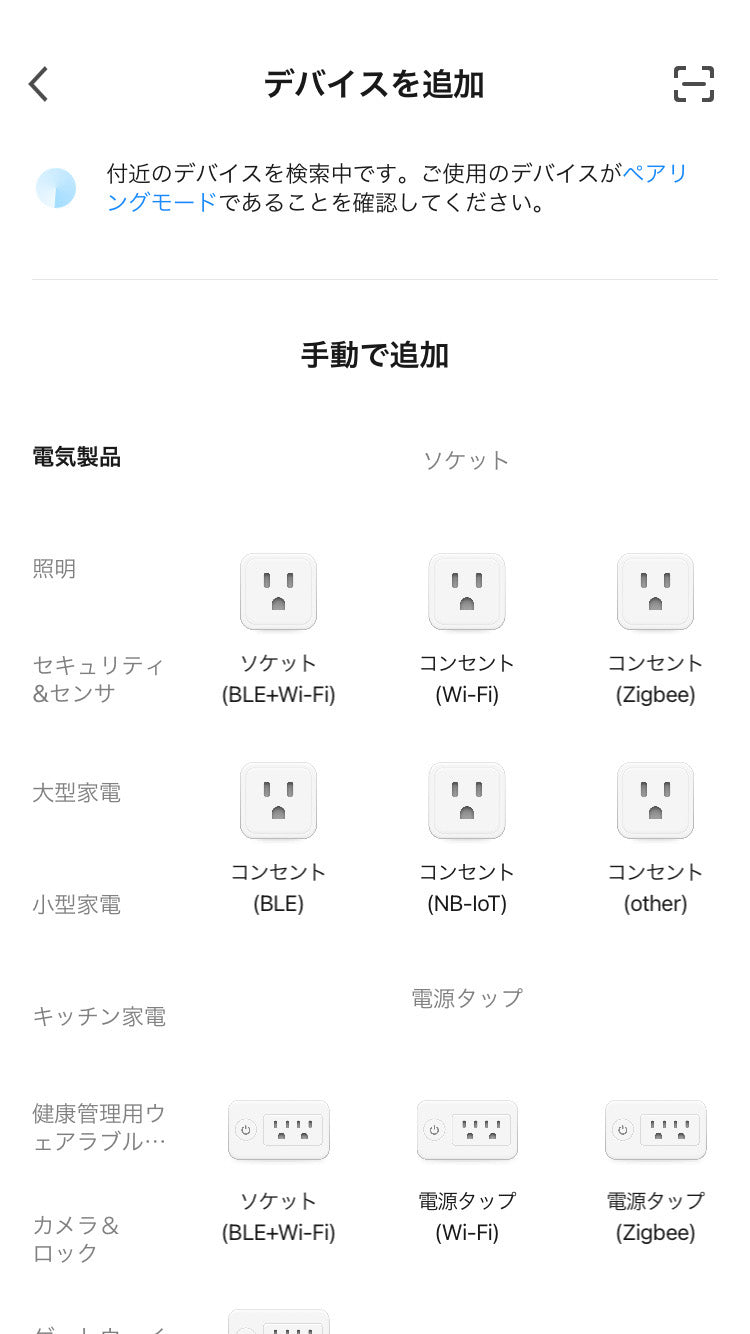
Initiating a connection
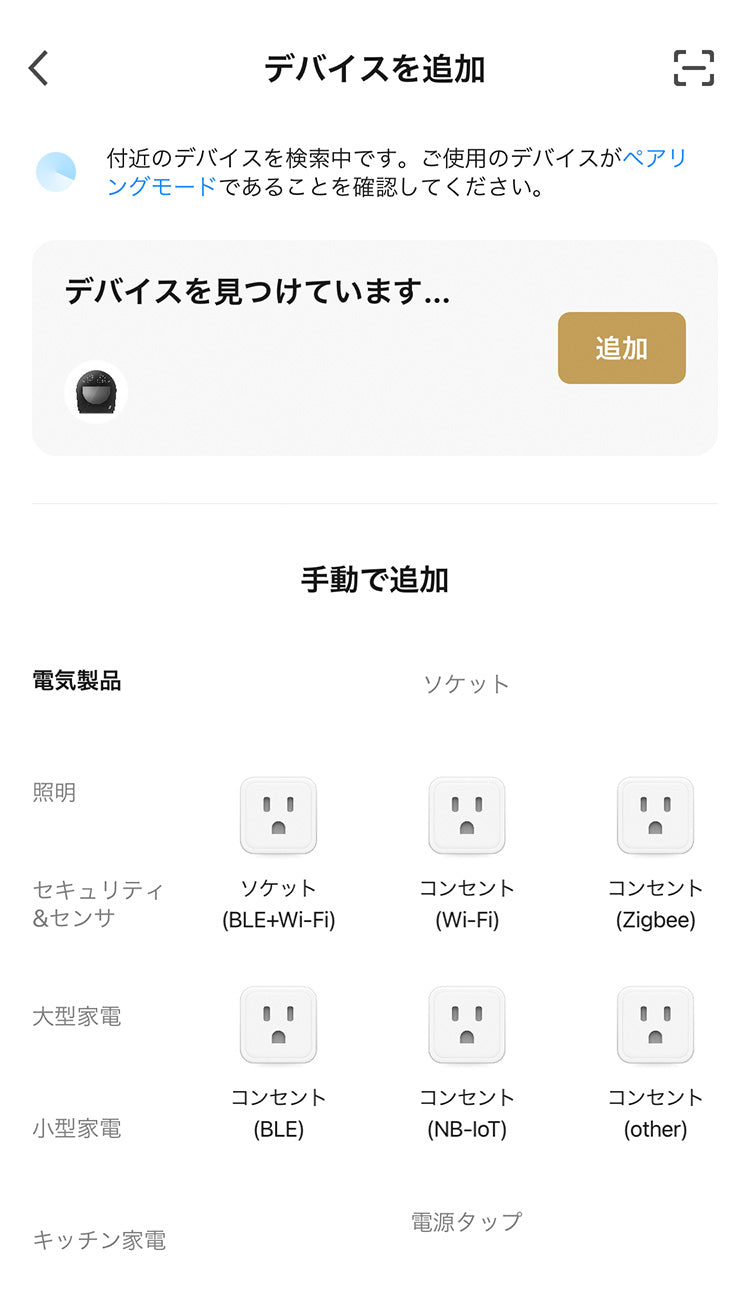
When both the app and the Chef device are in pairing mode, the message "Finding devices..." will be displayed and the Chef icon will appear.
Tap "Add" to start the connection.

Complete the connection
If there are no problems with the network environment, the message "Addition complete" will be displayed and the connection will be completed automatically.
Operate with the app
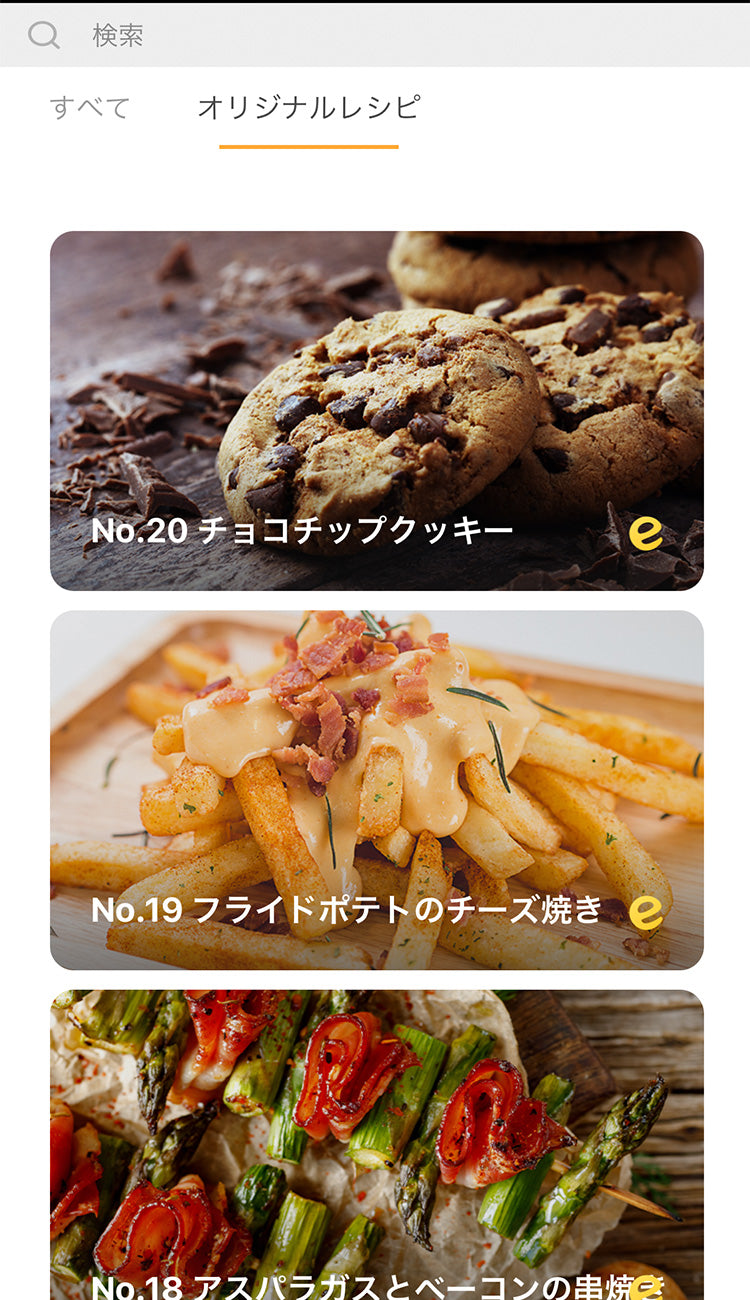
This completes the app connection.
You can operate Chef from the app.
Subsequent connections
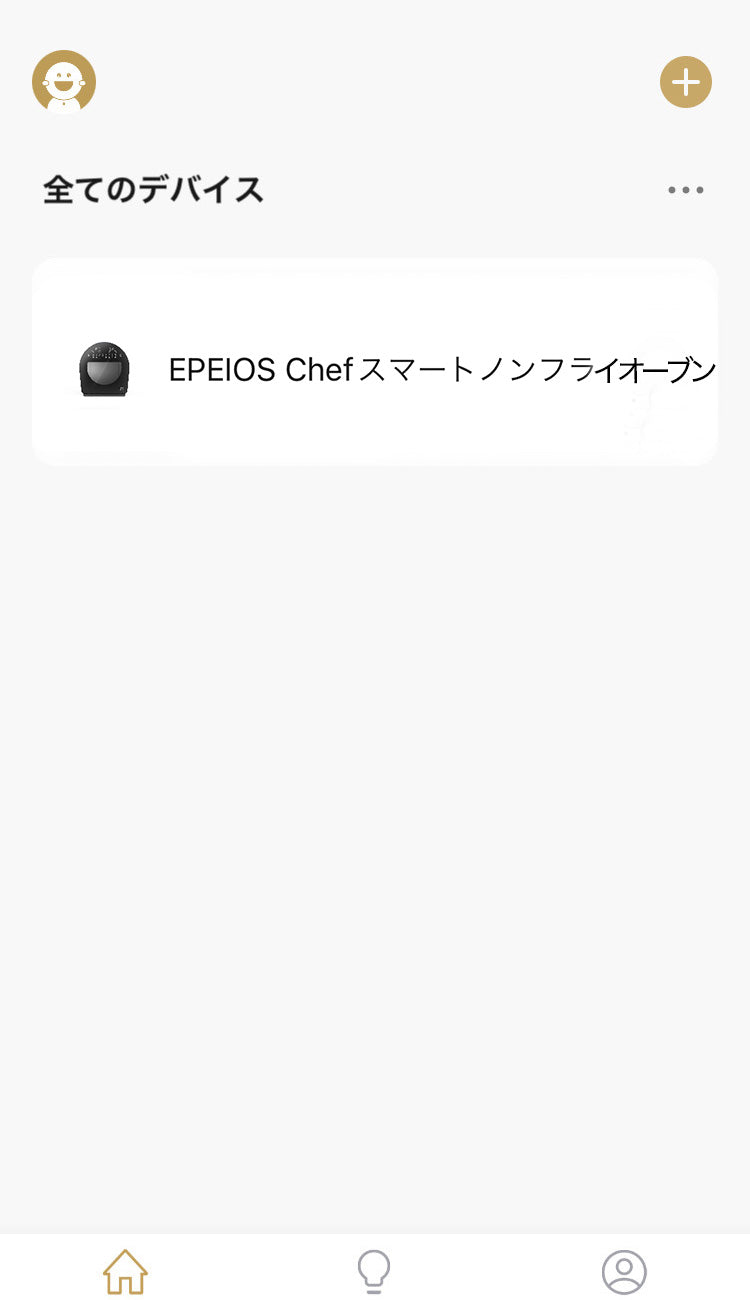
The app and Chef will automatically connect from next time onwards. Simply tap Chef in the device list on the app to use it.
Also, if you unplug the Chef from the power outlet, the connection settings will be reset, so please try connecting again.
MANUAL
operating instructions
Download the Chef Smart Non-Fry Oven manual here
